Strategy
How to create a digital inventory for your business
Find every page, automation, account, and offer your business has running.
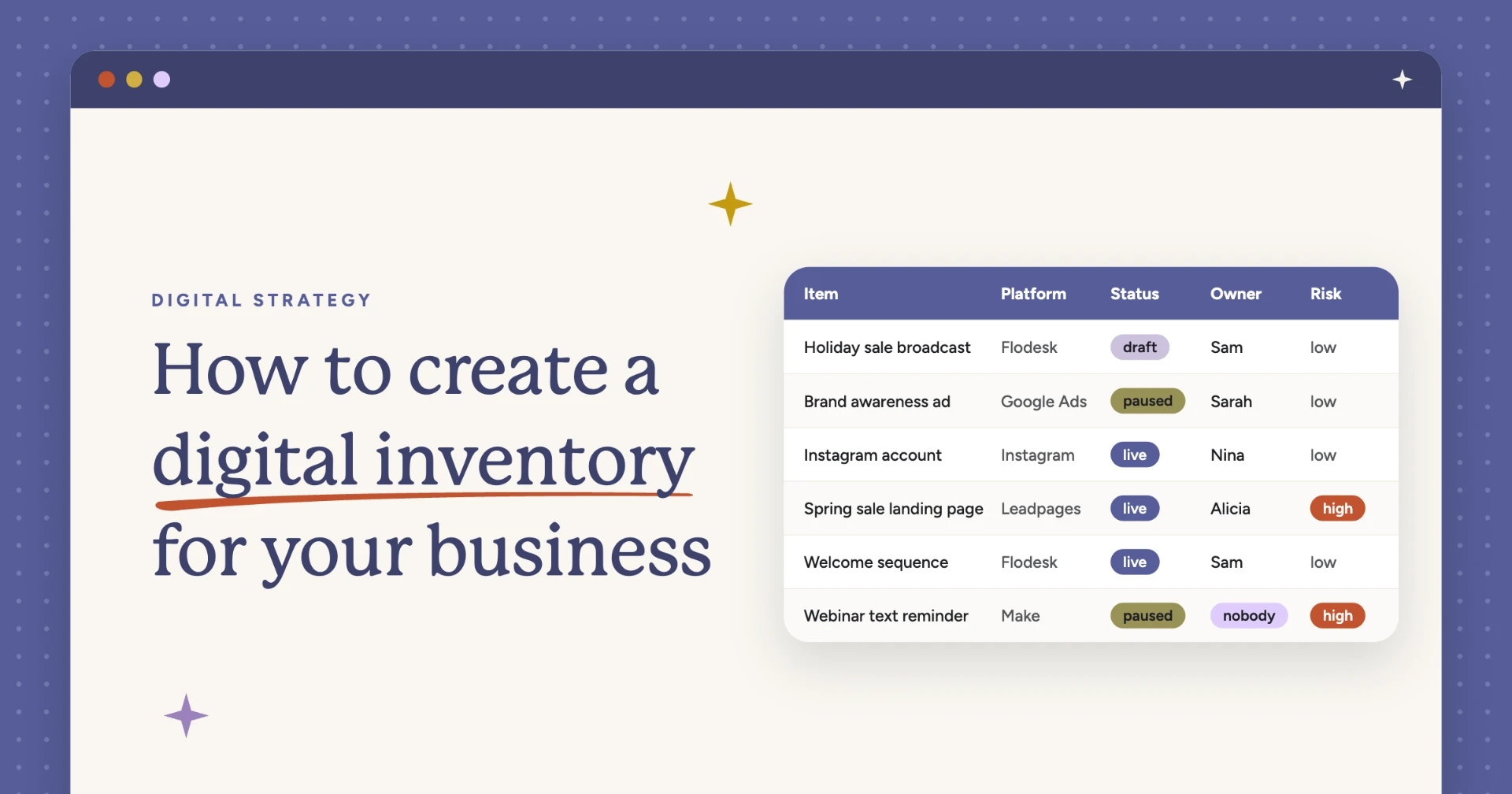
I recently read about a course creator who lost thousands of dollars to a landing page they’d forgotten existed and was selling their product at half price. Nobody noticed for six months! It wasn’t until they were reviewing financial reports where the pattern finally emerged. But then they still had to dig around to find the page and fix it.
They weren’t careless, but their business changed faster than their record of it. The page had no owner and wasn’t on any list, so nobody looked at it. Revenue is often your last signal and it’s also the slowest. A customer can land on an old offer or get dropped into the wrong email sequence months before the numbers show anything.
In my last post, I asked you to list everything digital your business has running so you can properly assess your digital strategy.
If your list stalled at eight or nine things, you didn’t do it wrong. Memory is a bad inventory system and with scattered tools, it forgets what you stopped looking at, and those are the things that cause trouble. We’re going to fix that!
This post is how you find the rest and turn it into a digital inventory: one list of everything digital your business has running. It’s also the best job I know of to hand to an AI assistant like Claude or ChatGPT. You’ll do the deciding, let Claude do most of the digging.
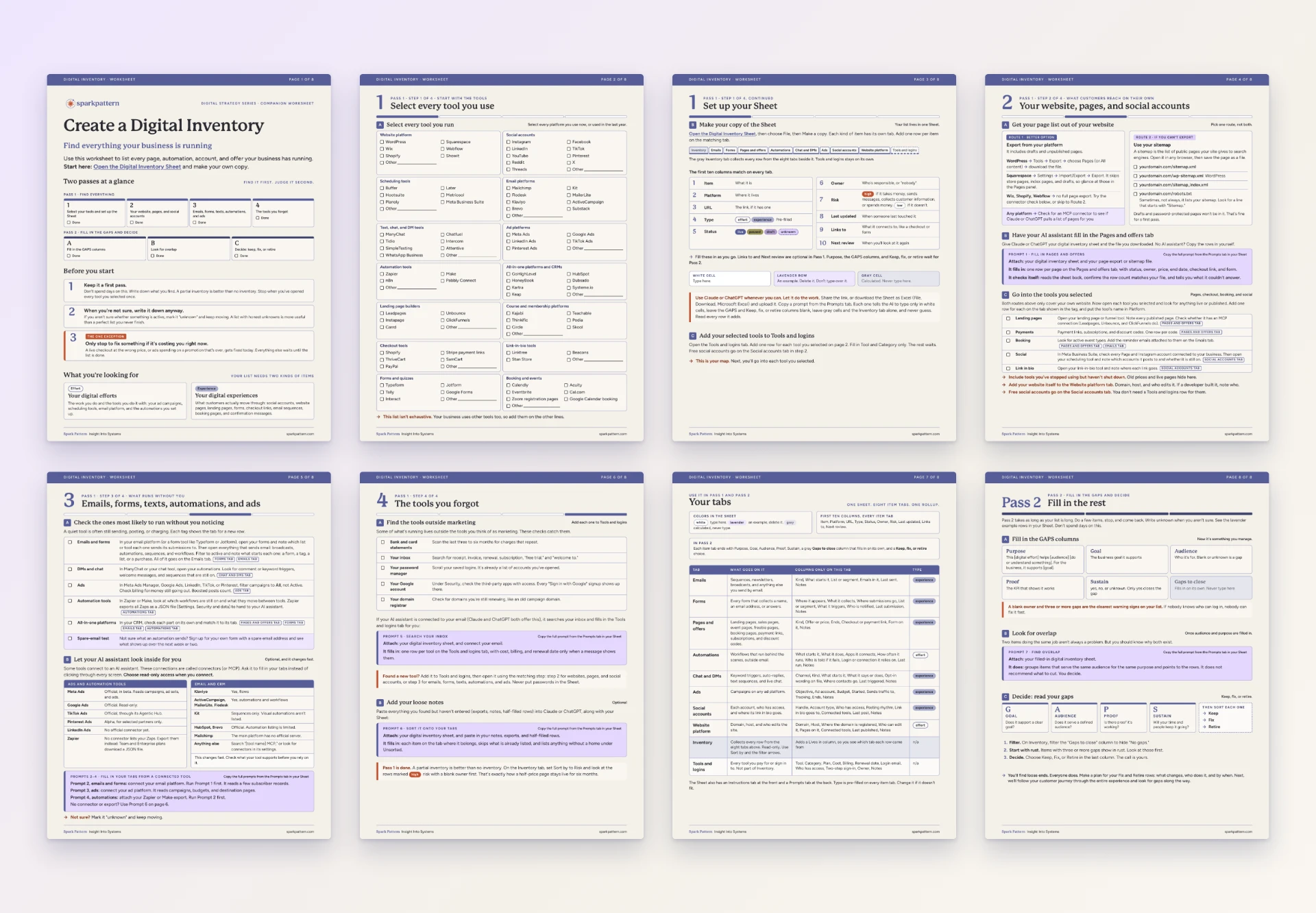
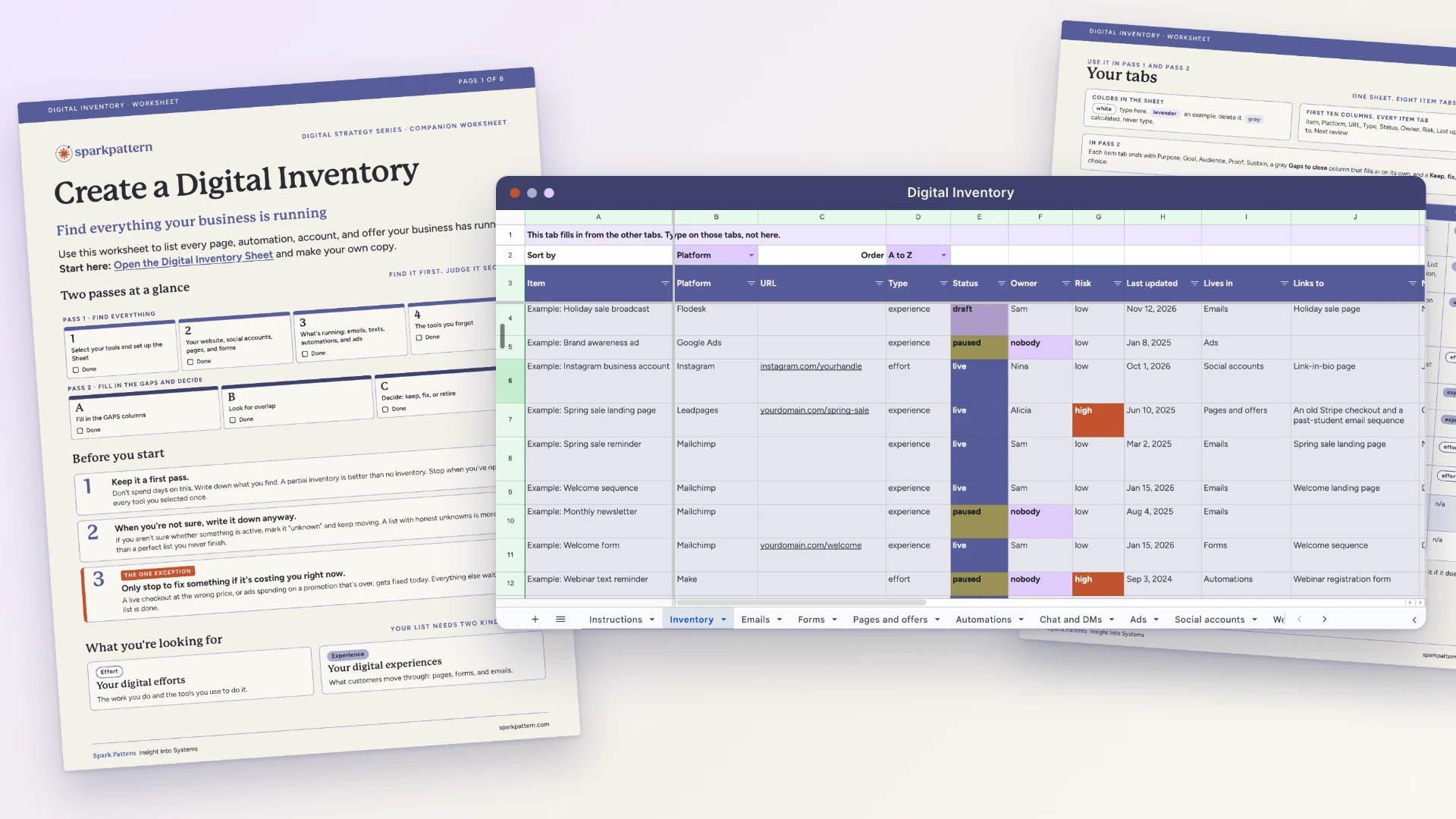
I built a Google Sheet for you to create your Digital Inventory and also have an 8-page worksheet available as a download at the bottom of this post to help you through this process.
What you’re looking for
The list you’ll create is going to track two kinds of items. As you may remember:
Your digital efforts are the work you do and the tools you do it with: your social accounts, ad campaigns, scheduling tools, email platform, and the automations you set up.
Your digital experiences are what customers actually move through: website pages, landing pages, forms, checkout links, email sequences, booking pages, and confirmation messages.
That half-price landing page was an experience. Customers found it, used it, and paid through it, and nobody on the business side was managing it anymore.
The experiences that are still live without anyone keeping an eye on it are the items we want to watch for most. This might be an old form that still feeds an outdated email sequence or a tool nobody remembers the password to but you’re still being charged for.
Before you start
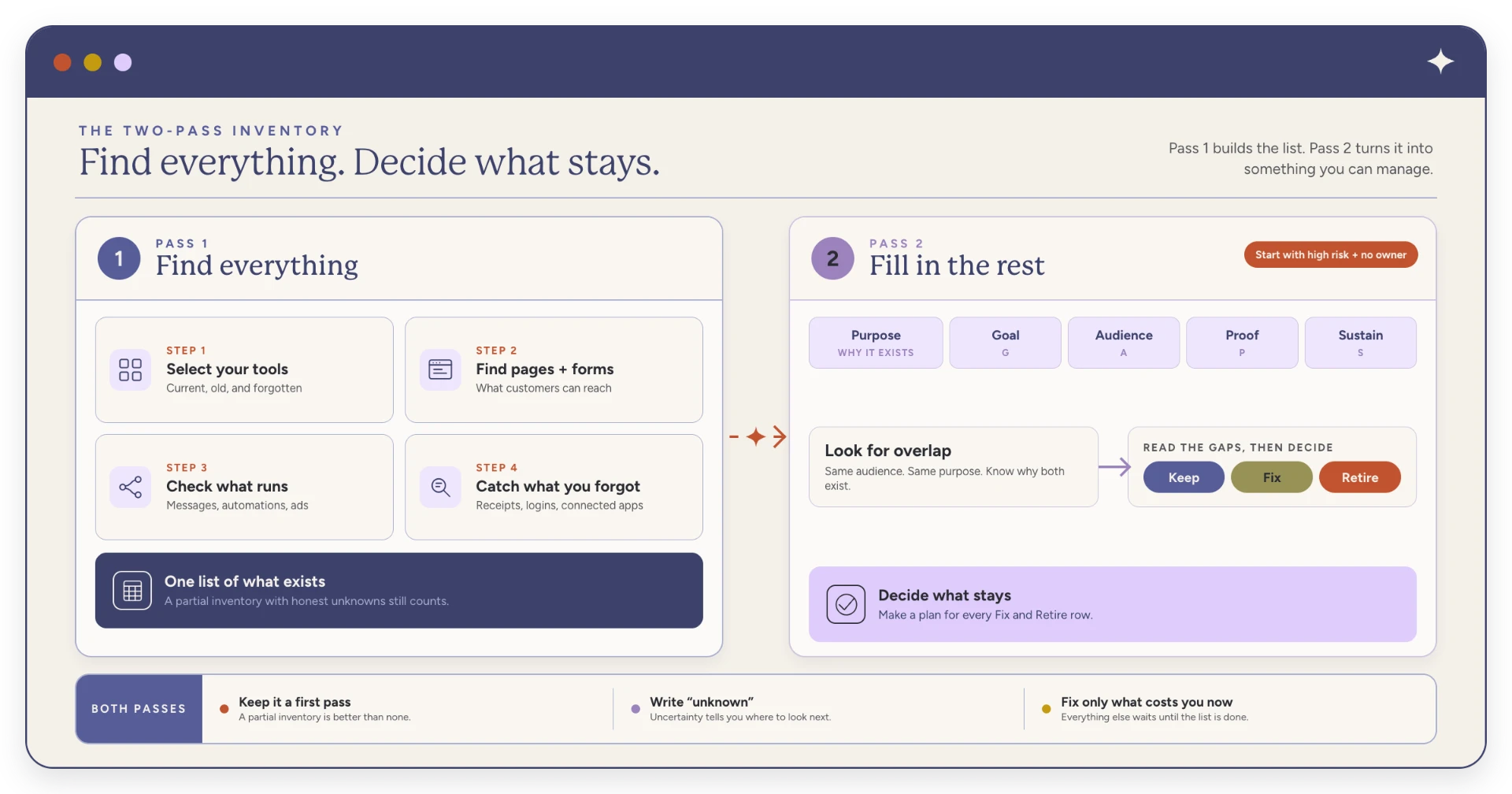
You’ll work in two passes. Pass 1 finds everything you have running. Pass 2 fills in the details and helps you decide what stays. Three rules apply to both.
- Keep it a first pass. Don’t spend days on this. A partial inventory is better than no inventory, because even a half-finished list shows you things you didn’t know you had.
- When you’re not sure, write it down anyway. If you can’t tell whether something is active or has an owner, mark it “unknown” and keep moving.
- Only stop to fix something if it’s costing you right now. A live checkout at the wrong price, or ads spending on a promotion that’s over, gets fixed today. Everything else waits until the list is done. Fixing as you go feels productive, but it’s how a first pass turns into a three-day detour.
This last one is important. If you have ADHD like I do, you’ll probably catch yourself three logins deep, rewriting an old email. Remember to pull yourself back from fixing things. Write it down, close the tab, and come back to the list.
Set up your digital inventory sheet
Open the Digital Inventory Sheet, then choose File, then Make a copy. It’s yours to edit. If you’d rather use Excel, download your copy as an Excel file. If you’d rather build your own, the structure below works in any spreadsheet.
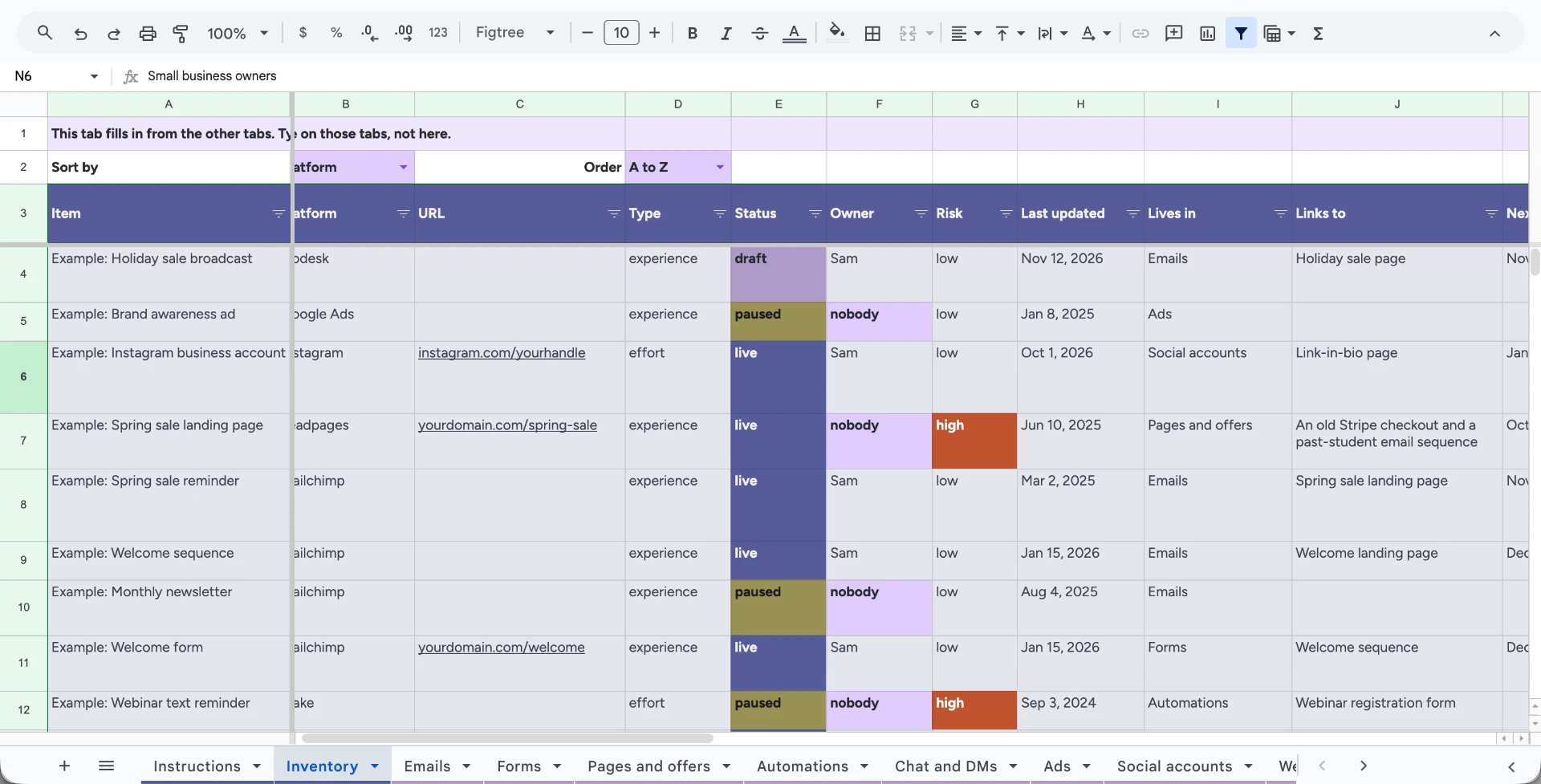
Why separate tabs instead of one long list? Because a form, an email sequence, and an ad campaign each need different details. An ad needs a budget, a form needs to know where its submissions go. Giving each kind of item its own tab means you ask the right questions about each one.
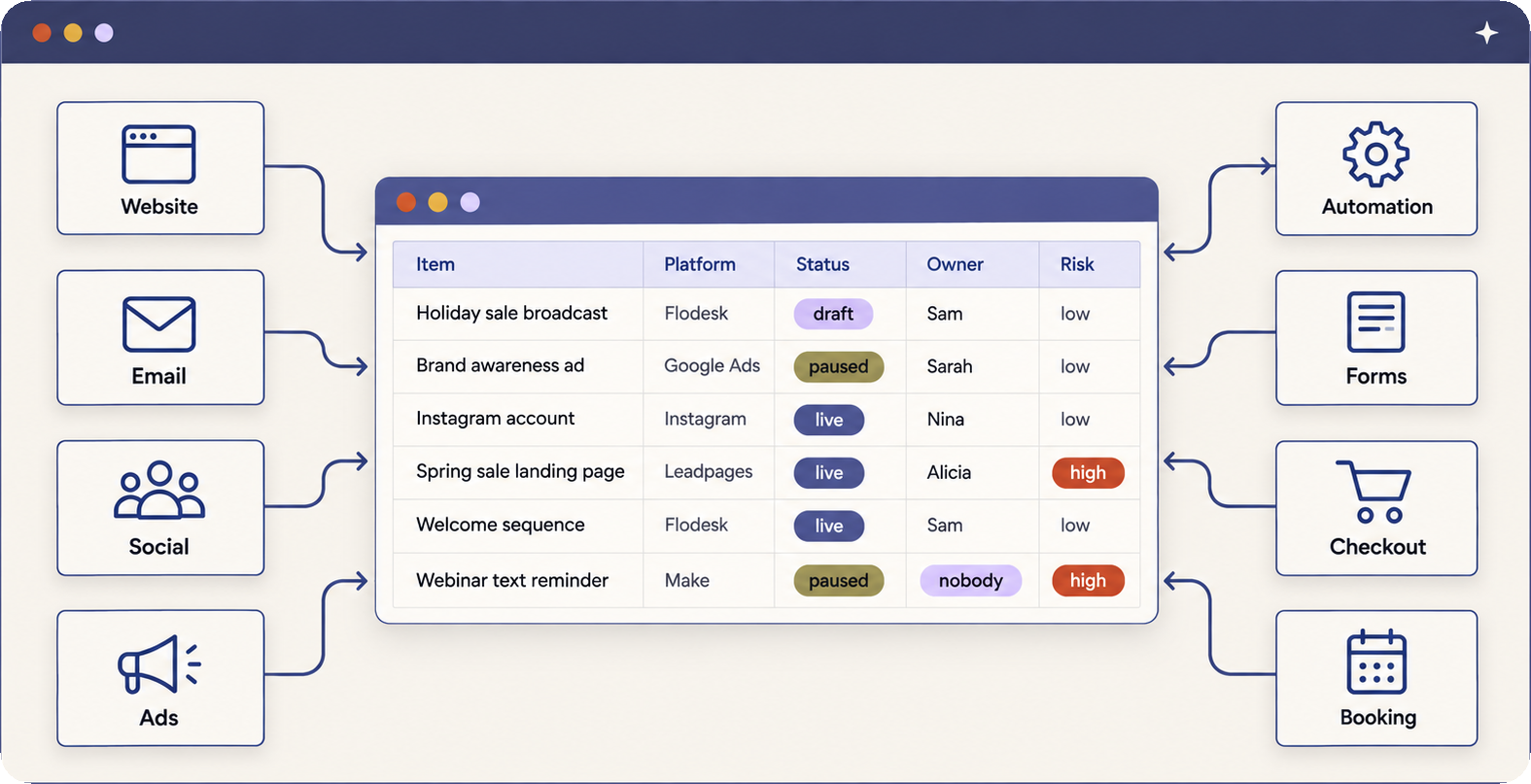
But you’ll get the full list too under Inventory, which collects every row from the eight tabs below. It’s read-only, so you sort and filter it but never type in this tab.
- Emails: sequences, newsletters, and broadcasts
- Forms: every form that collects a name, an email address, or answers
- Pages and offers: landing pages, sales pages, event pages, freebie pages, booking pages, payment links, subscriptions, and discount codes
- Automations: workflows that run behind the scenes, outside email
- Chat and DMs: keyword triggers, auto-replies, text sequences, and live chat
- Ads: campaigns on any ad platform
- Social accounts: each account, who has access, and where its link in bio goes
- Website platform: your domain, host, and who edits the site
Tools and logins is a separate list of every tool you pay for or sign in to. Please please please don’t put passwords in it.
Every item tab starts with the same ten columns:
- Item: what it is, like “Spring sale landing page”
- Platform: where it lives, like Leadpages or Mailchimp
- URL: the link, if it has one
- Type: effort or experience (pre-filled, so change it if it doesn’t fit)
- Status: live, paused, draft, or unknown
- Owner: who’s responsible for it, or “nobody”
- Risk: high if it takes money, sends messages, collects customer information, or spends money. Low if it doesn’t.
- Last updated: when someone last touched it
- (optional) Links to: what it connects to, like a checkout, a form, or an email sequence
- (optional) Next review: when you’ll look at it again
Fill these in as you go. Each tab also has a few columns of its own, like “What starts it” on Emails and “Offer or price” on Pages and offers. These are completely optional for this first pass but they are available if you find them helpful.
A quick guide to the colors:
Only type in the white cells. Never type in the Gray cells, they calculate on their own. Delete the Lavender rows, they are examples. If you type over a lavender row, your item keeps the example color and looks like part of the demo.
This spreadsheet may not be perfect, but hopefully it’s a good start for you.
Let AI do the work
Use an AI assistant whenever you can. Let it do the work for you.
The slowest part of this job is opening a dozen tools and copying what’s inside them, and that’s exactly what an AI assistant with access to your tools is good at. You give it your digital inventory sheet, point it at a tool, and it fills in the rows. Your time goes to checking them and deciding what to do about each digital item.
There are four ways to get your information in front of it, from least effort to most:
- Connect the tool. Many tools now offer a connector (often called an MCP). Once it’s connected, Claude or ChatGPT can look inside your account and list what’s there.
- Try Claude in Chrome if there’s no connector.
- Hand it a file. Export a page list, a campaign report, or a list of automations, and give it the file.
- Paste in what you see. Copy the list off your screen and tell it what it is. It’s the slowest option, but it still beats typing every row yourself.
Every step below tells you where to point it.
Where to find connectors. Start with the connectors or apps directory in Claude or ChatGPT. Not everything is listed there. Some tools publish an MCP server that isn’t in either directory, and both assistants let you add a custom connector by pasting in its address (what’s available depends on your plan). So if you don’t see your tool, don’t stop. Look it up:
- Search Google for “[your tool name] MCP.”
- Check the tool’s help center, developer docs, or integrations and settings pages. Search for “MCP,” “connector,” or “AI.”
- Prefer the connector that comes from the tool’s own company. A connector built by someone else runs with your login, so be pickier about who built it.
Choose read-only access. You’re taking inventory, not making changes. If the connector lets you pick permissions, pick read-only. Then tell the assistant not to change anything. My prompts all say so.
Expect a mixed picture. Some tools have solid connectors. Some list only part of what’s inside, like sequences but not visual automations. Some may have nothing yet. For those, you export a file instead when you can. This changes fast, so check what your own tools offer before you rely on it. My worksheet has a tool-by-tool table if you want a starting point.
Check what it gives you. The assistant only sees what the connector shows it. Drafts, paused items, and hidden pages may be missing. Read every row it adds, and mark anything you can’t confirm as “unknown.”
Once a tool is connected, this is the prompt I use:
I’ve linked my Digital Inventory sheet: [link] and connected my [tool] account. List everything active in it: campaigns, automations, sequences, flows, forms, pages, and workflows. Put each item on the tab where it belongs, one row per item. Fill in status, what starts it, and the last edited, last sent, or last run date. For ad campaigns, add the objective, budget, start and end dates, and where the ad sends traffic. Read only. Don’t create, edit, pause, or activate anything.You’ll also want to get the Google Sheets connector for Claude. It works great for accessing and updating a spreadsheet. But if Claude or ChatGPT can’t open the Digital Inventory Sheet directly for whatever reason, download it as an Excel file and upload it or drop it in your Cowork folder. That works in any AI tool.
Pass 1: find everything
Step 1: select the tools you use
Start with the tools, not the pages. A page can’t exist without a tool behind it, so the tool list is your map. Every tool you find now tells you where to look in the next three steps.
Go category by category and select every platform you use now, or used in the last year. Include the ones you’ve stopped using but haven’t shut down. If you can still log in, it counts.
Why? Because the things that get lost aren’t the ones you used last week, they’re the tools you set up for one launch, one workshop, or one experiment, and haven’t opened since. Canceling a plan or ignoring an account doesn’t always turn off what’s inside it. Old pages can stay published, forms can keep collecting, and automations can keep sending. Select the tool now, and you’ll check inside it in the next steps.
- Website platform: WordPress, Shopify, Squarespace, Webflow, Wix, Showit
- Social accounts: Facebook, Instagram, LinkedIn, TikTok, YouTube, Pinterest, Reddit, X, Threads
- Scheduling tools: Buffer, Later, Hootsuite, Metricool, Planoly, Meta Business Suite
- Email platforms: Mailchimp, Flodesk, Klaviyo, Kit, MailerLite, Brevo, ActiveCampaign, Substack
- Text, chat, and DM tools: ManyChat, Chatfuel, Tidio, Intercom, SimpleTexting, Attentive, WhatsApp Business
- Ad platforms: Meta Ads, Google Ads, LinkedIn Ads, TikTok Ads, Pinterest Ads
- Automation tools: Zapier, Make, n8n, Pabbly Connect
- All-in-one platforms and CRMs: GoHighLevel, Dubsado, Systeme.io, HoneyBook, Kartra, Keap, HubSpot
- Landing page builders: Leadpages, Unbounce, Instapage, ClickFunnels, Carrd
- Course and membership platforms: Kajabi, Teachable, Thinkific, Podia, Circle, Skool
- Checkout tools: Shopify, Stripe payment links, ThriveCart, SamCart, PayPal
- Link-in-bio tools: Linktree, Beacons, Stan Store
- Forms and quizzes: Typeform, Jotform, Tally, Google Forms, Interact
- Booking and events: Calendly, Acuity, Eventbrite, Cal.com, Zoom registration pages, Google Calendar booking
This list isn’t exhaustive. Your business uses other tools too, so make note of them and add them on the other lines in the category they belong.
Then add every tool you selected to the Tools and logins tab. Fill in the tool and its category only. The rest can wait.
Step 2: your website, pages, and social accounts
This step covers what customers reach on their own, without you. It’s the part of your business that’s open for visitors at 2 a.m., so it’s where a forgotten price or an old offer does the most damage.
A. Get your page list out of your website. Pick one of these two routes, not both.
Route 1: export from your platform. This is the better option because it includes drafts and unpublished pages but not all platforms support this.
Route 2: use your sitemap if you can’t get your pages out. This might be the case if your platform doesn’t offer an export, a custom build, or a site your developer set up and you can’t find your way around the back end. A sitemap is the list of public pages your site gives to search engines, and you can open it in any browser. Try these addresses:
- yourdomain.com/sitemap.xml
- yourdomain.com/sitemap_index.xml
- yourdomain.com/wp-sitemap.xml (some WordPress sites)
- yourdomain.com/robots.txt. Sometimes, but not always, your sitemap address is listed in this file. Look for a line that starts with “Sitemap.” If it isn’t there, that doesn’t mean you don’t have a sitemap. Try the others.
When one opens, save the page as a file or provide the link to your AI assistant. A sitemap only shows public pages, so drafts and password-protected pages won’t be in it, which is completely fine for a first pass.
B. Have your AI assistant fill in the Pages and offers tab. Give Claude or ChatGPT your digital inventory sheet and the file you downloaded, with this prompt. Replace the brackets with your platform. No AI assistant? Copy the rows in yourself.
I've attached my Digital Inventory sheet and an export of my website pages. Fill in the Pages and offers tab with one row per page, starting at the first empty row. Include every page, drafts and untitled ones too. Follow the Instructions tab: type only in white cells, use the dropdowns, and leave gray cells alone. Use only what the export contains, and write "unknown" or leave a cell blank when it doesn't say.
- Item: the page title. If none, "Untitled draft (page ID <the page's ID from the export>)".
- Platform: the website platform. Take it from the export if the file identifies one. Otherwise use the matching tool on the Tools and logins tab, spelled the same way. Write "unknown" if neither says.
- URL: from the export.
- Status: "live" if the export marks the page published, "draft" if not, "unknown" if it has no status. This records publishing only. Don't judge whether a page is current, in use, or safe to remove, and don't treat an offer as running or ended unless the page text says so.
- Owner: the page's author from the export (display name, not login), or "unknown" if there is none.
- Kind: from the page title only, or "other" if unclear. Offer pages count as "sales page".
- Risk: "high" for landing pages, sales pages, event pages, freebie pages, offers, and discount codes. "low" for the rest.
- Last updated: the last modified date, as a real date.
- Offer or price: prices and limited-time language from the page text. Call out countdown timers and "limited time" wording, and name the timer plugin or ID if the export shows it. Label obvious template filler prices "Template placeholder".
- Ends: an end date only if the page states one. "unknown" if the page has a timer or limited-time wording but no date. Blank if there is no offer.
- Checkout or payment link: buy-button or add-to-cart URLs, including any coupon code in the link.
- Form on it: forms in the page content, with the tool and ID. Leave blank if there is none.
- Notes: the page ID, plus anything the export can't confirm, such as a reusable block or a plugin setting that isn't in the page content.
Add a row for each discount code or standalone payment link found. Leave Links to, Next review, the GAPS columns, and Keep, fix, or retire blank for me.
When you finish, read the sheet back to confirm the row count matches the export. Then tell me which Kind and Risk calls were judgment calls and what the export couldn't answer.
C. Go into the tools you selected. Your sitemap only covers your own website. If you’ve ever ran a launch, a workshop, a course, or a free download, some of those pages probably live on another platform. Open each tool you selected in Step 1 and look for anything live or published.
If it has a connector, use the prompt from the AI section and skip the clicking. I can’t recommend enough having Claude or ChatGPT do the heavy lifting for you.
Add one row for each item on the tab shown here, and put the tool’s name in Platform.
- Landing pages: open your landing page or funnel tool and note every published page. Check whether it has an MCP connection. Leadpages, Unbounce, and ClickFunnels do. (Pages and offers tab)
- Payments: look for payment links, subscriptions, and discount codes. One row per code, because an old code is a standing discount that nobody is watching. (Pages and offers tab)
- Booking: look for active event types. Then add the reminder emails attached to them. The event types go on the Pages and offers tab, and the emails go on the Emails tab. (Pages and offers and Emails tabs)
- Social: in Meta Business Suite, check every Page and Instagram account connected to your business. Then open your scheduling tool and note which accounts it posts to and whether it’s still on. (Social accounts tab)
- Link in bio: open your link-in-bio tool and note where each link goes. (Social accounts tab)
Two more notes:
- Add your website itself to the Website platform tab. Include the domain, the host, and who edits it. If a developer built it, note who.
- Free social accounts go on the Social accounts tab. You don’t need a Tools and logins row for them.
Step 3: forms, emails, texts, automations, and ads
Step 2 was about what customers can reach. This step is about what’s moving without anyone touching it. Automations are the part of your business that keeps working after you stop paying attention, which is the point of them, and also the problem. A tool can look quiet from the outside while something inside it is still sending, posting, or charging.
Check the ones most likely to run without you noticing. This is where connectors save the most time, so connect first and click second.
- Forms: check where each form sends its submissions, and whether it triggers an email. (Forms tab)
- Email and texts: open your automations (also called workflows, sequences, or flows) and filter to active. Note what starts each one: a form, a tag, a list, or a purchase. (Emails and Automations tabs)
- DMs and chat: in ManyChat or your chat tool, open your automations. Look for comment or keyword triggers, welcome messages, and sequences that are still on. (Chat and DMs tab)
- Ads: in Meta Ads Manager, Google Ads, and anywhere else you’ve tested (LinkedIn, TikTok, Pinterest), filter campaigns to All, not Active. Look at billing to see where money is still going. Boosted posts count. (Ads tab)
- Automation tools: in Zapier or Make, look at which workflows are still on and what they move between tools. Zapier can export all your Zaps as a JSON file (Settings, then Security and data), so you can hand the file to your AI assistant. (Automations tab)
- All-in-one platforms: in your CRM, check each part on its own and match it to its tab. One platform can fill the Pages and offers, Forms, Emails, and Automations tabs.
Not sure what an automation sends or can’t find it? Sign up for your own form with a spare email address and see what shows up over the next week or two. It’s the only way to see what your customer sees.
Here’s the prompt to use if you connect your email platform with Claude or ChatGPT:
I've connected my email platform account and attached my Digital Inventory sheet. If I also attached a website export, use it. Read only: don't create, edit, send, pause, or activate anything.
First, list what the connection can and can't return for forms, automations, campaigns, audiences, and subscribers. For anything it can't return, infer the value using the rules below.
Find everything in the account that sends email or collects sign-ups, including paused and draft items. Follow the Instructions tab: start at the first empty row, type only in white cells, use the dropdowns, and leave the example rows. Check each tab first so you don't add an item that's already listed. Leave a cell blank only when there is no evidence. Don't guess dates.
Where things go:
- Emails: workflows that send email (sequences, flows, automations), any date, plus campaigns as described below.
- Forms: sign-up forms, popups, and embedded forms.
- Pages and offers: hosted landing, checkout, or freebie pages.
- Automations: workflows that don't send email.
Campaigns (only those sent in the last 90 days):
- One row for regular sends: Item "Newsletter (last 90 days)", Kind "newsletter", Emails in it = how many were sent, Last sent = the most recent send date, List or segment = the audiences they went to.
- A separate row only for a campaign that promoted an offer, sale, discount code, or freebie. Kind "broadcast", Risk "low". In Notes, list the page URLs and discount codes it linked to. If the connection can't read campaign content, judge by the subject line and say so in Notes.
- No row for any other campaign.
Every row:
- Item: the name in the platform.
- Platform: the name of the connected platform.
- URL: the item's link, if the connection gives one.
- Status: "live", "sent" (campaigns already out), "paused", "draft", or "unknown". For forms and popups with no platform status, use "live" if the form ID or embed code appears in a published page or post (on my Pages and offers tab or in the website export), otherwise "unknown". Don't judge whether an item is current, in use, or safe to remove.
- Owner: the creator if the platform shows one, otherwise "unknown".
- Risk: "high" if it is live, paused, or unknown AND it promotes an offer, sale, or freebie, or links to a checkout or payment page. Otherwise "low".
- Last updated: the last edited date, only if the platform reports one. Not the sent date.
Emails tab:
- Kind: newsletter (the 90-day row), broadcast (an offer campaign), sequence (a timed series), flow (branches or conditions), automation (a single triggered email), transactional (receipts and system emails).
- What starts it: the trigger (for example "joins an audience" or "submits a form"), or "Sent manually as a campaign". If the trigger is joining an audience, name it. If another workflow adds people to it, add "chained from {workflow}".
- List or segment: the audiences it goes to ("All subscribers" if that's the scope) and any it excludes.
- Emails in it: the number of emails in the workflow, the send count for the newsletter row, or 1 for a broadcast.
- Last sent: the send date for campaign rows. Blank for workflows unless the platform gives one.
Forms tab:
- Form ID: from the platform.
- Where submissions go (platform): the name of the connected platform.
- Where it appears: pages on my Pages and offers tab whose "Form on it" mentions this form ID, plus any published page or post in the website export that contains the form ID or embed code. Format as "Post: Title (URL)". If a page uses reusable blocks the export doesn't show, say so in Notes.
- List/segment/audience: if the platform doesn't show it, sample the first 5 active subscribers whose signup source is this form and use the audience they all share. Ignore audiences nearly everyone has, system-managed audiences, and engagement tiers. If not all 5 share it, write "(n of m sampled)".
- What it triggers: the Emails tab workflow that starts when someone submits this form or joins that audience. Use a direct form-to-workflow link if the platform has one. Otherwise infer through the audience.
- What it collects, Who is notified, and Last submission: only if the platform shows it.
Labeling inferred values:
- Returned by the platform, or inferred and the samples agree: write it plain.
- Samples disagree or are thin: add "(partial: reason)".
- Name match only, used only when a lookup is impossible (two forms share a name, or the form has no subscribers): write "(name match only: reason)".
- No workflow starts from that audience: write "None found for the '{audience}' audience".
- No evidence: leave blank.
Only read subscribers to sample them. Don't change any subscriber or audience.
Notes: "Created {date}" if the platform reports one, what was inferred and how, and anything the connection couldn't show for that row.
Leave Links to, Next review, the GAPS columns, and Keep, fix, or retire blank for me.
When you finish, read each tab back to confirm the rows match the account. Then tell me:
1. Which types of items the connection can't list (for example landing pages, drafts, or campaign content).
2. Which Kind, Risk, and Status calls were judgment calls.
3. Which dates it couldn't provide.
4. Every page URL and discount code linked from the campaigns you reviewed, marked "already on Pages and offers" or "not on the sheet yet."
5. Inferred columns: how many cells are plain, partial, name-match-only, and blank, and which rows are partial or name-match.
You can find prompts for Ad campaigns and Automation tools like Zapier in the Digital Inventory spreadsheet under the Prompts tab.
Step 4: the tools you forgot
Everything so far started from tools you remembered. This step is for the ones you didn’t. Some of what’s running lives outside the tools you think of as marketing, and these checks catch it. Add each one to Tools and logins.
- Bank and card statements: scan the last three to six months for charges that repeat.
- Your inbox: search for receipt, invoice, renewal, subscription, “free trial,” and “welcome to.”
- Your password manager: scroll your saved logins. It’s already a list of accounts you’ve opened.
- Your Google account: under Security, check the third-party apps with access. Every “Sign in with Google” signup shows up there.
- Your domain registrar: check for domains you’re still renewing, like an old campaign domain.
If your AI assistant is connected to your email (Claude and ChatGPT both offer this), let it do the inbox search and fill in the Tools and logins tab:
I’ve attached my Digital Inventory sheet and connected my email. Search for receipts, renewals, invoices, trial signups, and account confirmations from business tools. Add one row per tool to the Tools and logins tab. Fill in cost, billing, and renewal date only when a message shows them.This is the step that usually catches the account you signed up for once and never thought about again.
Found a new tool? Add it to Tools and logins, then open it using the matching step: Step 2 for websites, social accounts, pages, and forms, or Step 3 for emails, texts, automations, and ads. Finding one tool often leads to a few more, and that’s the loop doing its job.
Add your loose notes (optional). By now you may have exports, scribbled notes, and half-filled rows. Paste everything you found but haven’t entered into Claude or ChatGPT, along with your sheet:
I’ve attached my Digital Inventory sheet. Below are my notes, exports, and half-filled rows. Put each item on the tab where it belongs, one row per item. Skip items already on the sheet. List anything without a clear home under a short note called Unsorted.Pass 1 is done. You now know more about your digital business than many business owners do! Connecting all of your digital initiatives into one spreadsheet will give you a better understanding to what is running in your business.
Now go to the Inventory tab and set Sort by to Risk and look at the rows marked high risk with a blank owner first. If you’re seeing any show up, you can see how a half-price page stays live for six months.
Pass 2: fill in the rest
Pass 1 told you what exists, now Pass 2 tells you whether it deserves to.
Pass 2 takes as long as your list is long, so don’t plan on finishing in one sitting. Start with your high-risk rows, do a few, and stop when your attention runs out. Or better yet, set a timer.
Write “unknown” whenever you aren’t sure. The lavender example rows in your copy of the sheet show you what a finished row looks like. Delete them once you’ve seen them.
Not sure whether your Purpose sentences are specific enough? This prompt checks them without rewriting them:
Below are purpose sentences for the items in my digital inventory. Each one follows this format: “This [digital effort] helps [audience] [do or understand something]. For the business, it supports [goal].”

For each sentence, tell me:

1. Is the audience specific, or is it too broad (like “everyone” or “customers”)?

2. Is the result something I could observe or measure?

3. Does it lean on vague words like “engage,” “build awareness,” or “stay active”?

Label each sentence clear, vague, or missing a piece. Don’t rewrite them for me.

[Paste your purpose sentences here]
Fill in the GAPS columns
Each item tab ends with five columns that turn a list into something you can manage. This is where you find out which items have a reason to exist and which are just still there.
- Purpose: use the sentence from post 1. “This [digital effort] helps [audience] [do or understand something]. For the business, it supports [goal].” If you can’t finish the sentence, that tells you something. The second sentence is optional since theirs another column to capture it.
- Goal: the business goal it supports
- Audience: who it’s for. Blank or unknown is a gap.
- Proof: the KPI that shows it works
- Sustain: yes, no, or unknown. Only yes closes the gap.
A sixth column, Gaps to close, fills in on its own. Never type in it. Next to it is a Keep, fix, or retire column, which you’ll use in a minute.
A blank owner and three or more gaps are the clearest warning signs on your list. If nobody knows who manages it, nobody can fix it fast.
Look for overlap
Once audience and purpose are filled in, you can look for overlap. Before then, your AI assistant has nothing to compare. This is where you find two tools collecting the same signups, or two pages making the same offer to the same people and aren’t both live for A/B testing reasons:
Read the Inventory tab. Find items that serve the same audience for the same purpose. Group them, explain what each group has in common and what’s different, and point to the rows. Don’t recommend what to cut. I’ll decide. Don’t change the sheet.Two items doing the same job aren’t always a problem. But you should know why both exist.
Decide: read your gaps
Now run each item through GAPS:
- G oal: does it support a clear goal?
- A udience: does it serve a defined audience?
- P roof: is there proof it’s working?
- S ustain: will your time and people keep it going?
Go back and read the prior post if you need a refresher of GAPS:
Doing digital marketing does not mean you have a strategy
Then:
- Filter. On the Inventory tab, filter the “Gaps to close” column to hide “No gaps.”
- Start with rust. Items with three or more gaps show in rust. Look at those first.
- Decide. Choose Keep, Fix, or Retire in the last column. The call is yours.
Retire doesn’t mean delete tonight, it means you’ve decided the item shouldn’t be live, and now someone owns turning it off. Everything you keep still deserves a closer look at how well it’s working too.
Make a plan for your Fix and Retire rows: what changes, who does it, and by when.
Next, we’ll follow your customer journey through the entire experience and look for gaps along the way, because your customers don’t meet these pieces one at a time.
Remember to get your copy of the Digital Inventory Sheet and an 8-page worksheet with the two-pass checklist, platform lists, sitemap steps, and every prompt.